How do I customize Coffee & Contracts Templates?

We often get asked…
“How do I customize Coffee & Contracts Templates to make them unique to my personal brand?” Today we’re rounding up several members who expertly utilize Coffee & Contract’s templates for their real estate marketing. Keep scrollin’ for more.
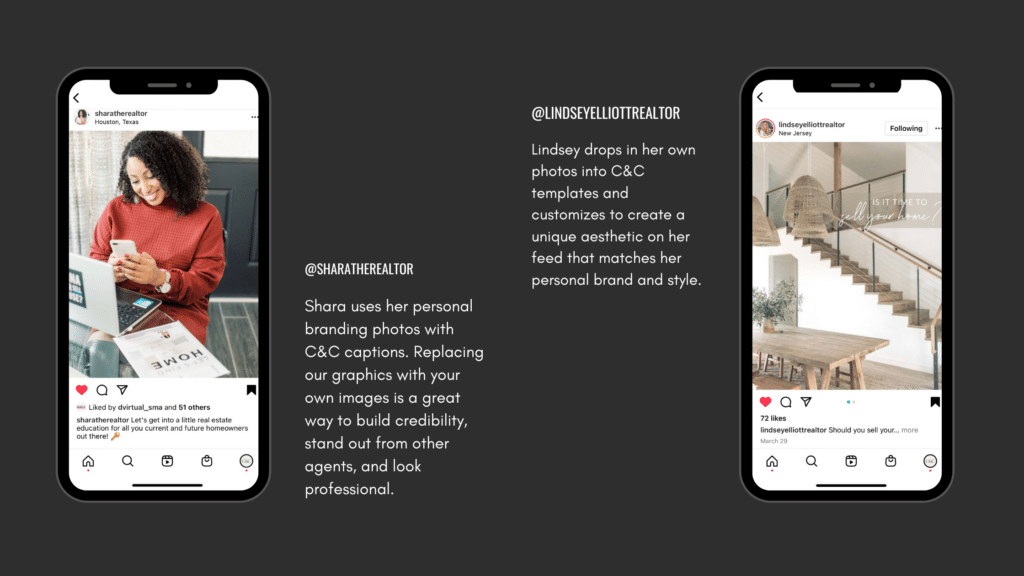
First let’s look at Shara and Lindsey:
Shara uses personal branding photos with Coffee & Contracts captions. Replacing our graphics with your own images is a great way to build credibility, stand out from other agents, and look professional.
Read More: Branding Photos for Real Estate Agents
Lindsey drops in her own photos into C&C templates and customizes to create a unique aesthetic on her feed that matches her personal brand and style.
Next, let’s look at Sarah and Kyle:
Team Sarah replaces terms like “I” to “We” in our caption templates because she is posting on her brokerage’s team account. She also drops in professional team photos. This is a great way to repurpose Coffee & Contracts content as a team.
Kyle drops his own professional images into C&C templates and customizes the colors and fonts to fit his brand.
Read More: Why Canva Is a Great Tool for Real Estate Agents

Up next, let’s look at Paige and Stevie:
Paige takes her branding images and uses Canva’s background remover (available on Canva Pro) to add herself to a Coffee & Contracts graphic.
Read More: How to Use the Coffee & Contracts Branding Kits
Stevie repurposes a C&C content calendar post into content for her email newsletters.

Finally, let’s look at Sara
Sara customized a Coffee & Contracts caption template and repurposed it into a Reel showing visual examples. For more examples, including how members use our templates to film videos & Reels, check out this post.
How do you get creative with Coffee & Contracts content? We’d love to know! Tag us in your posts (@coffeecontracts) for a chance to be featured in our future social media and blog posts.
Did we answer your question: “How do I customize Coffee & Contracts Templates?” Let us know in the comments below!
Frequently Asked Questions
1. Do I need Canva Pro to customize Coffee & Contracts templates?
Some of Canva's more advanced features, like the background remover used to cut yourself out of a photo and place your image onto a template graphic, require Canva Pro. However, basic customization like swapping photos, changing text, and adjusting colors is fully available on the free Canva plan. If you want to get the most out of your templates with the least friction, Canva Pro is worth the investment, but it is not required to get started.
2. Can a real estate team use Coffee & Contracts templates on a shared team account?
Yes, templates can easily be adapted for team use by swapping "I" for "We" throughout the captions, adding team photos instead of individual ones, and including the team or brokerage branding. Many Coffee & Contracts team members also use the templates as a starting point and have individual agents customize their own versions for personal posts while using shared graphics for brokerage-level content. The flexibility is built in.
3. What is the fastest way to make Coffee & Contracts templates look unique to my personal brand?
Swap out the stock imagery for your own personal branding photos. Once your photos are in, adjust the accent colors to match your brand palette in Canva. These changes make a template look completely custom without requiring any advanced design skills.
4. Can Coffee & Contracts templates be used on platforms other than Instagram?
Yes, the templates are designed primarily for Instagram but can be repurposed for Facebook, LinkedIn, and even email newsletters with minor adjustments. For email, a team member featured in the post example exported her C&C carousel captions directly into her email newsletter format. Canva allows you to resize and reformat designs easily, so a single piece of content can be adapted across multiple channels with just a few clicks.
5. How do I add my own photos to a Coffee & Contracts template in Canva?
Open the template in Canva, click on the existing image or graphic placeholder, and select "Replace" or simply drag your own photo from your uploads folder into the frame. Canva will automatically crop and fit your image to the template's layout. If you want to remove a background so your photo blends cleanly with the template design, use Canva's "Background Remover" feature, which works especially well for headshots and solo portrait shots
More like this

$9M Closed. Another $7M in her Pipeline. All from niching down on Instagram

AI for real estate agents on Instagram: Attract better leads and grow your business in 2026